Routing by expense category
Send mileage to the Fleet Manager and travel to Finance. Update the claim-type mapping once for future claims.
Send mileage to the Fleet Manager and travel to Finance. Add an employee-type exception when a Director’s Air Ticket needs Board Approval, while an Executive’s ticket follows Finance.
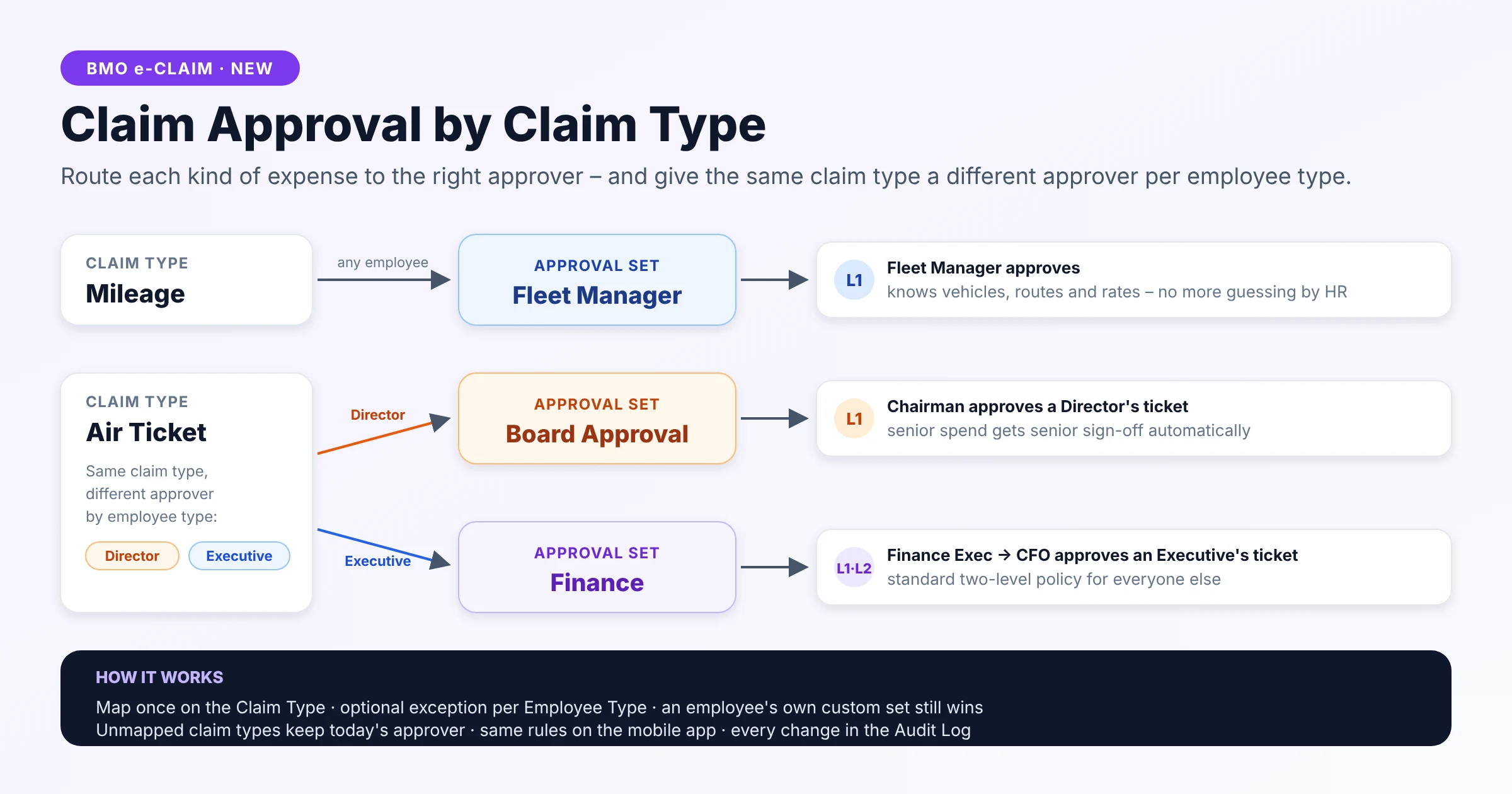
Route each expense type to the right approval set, with employee-type exceptions and the existing employee custom set taking priority.
Send mileage to the Fleet Manager and travel to Finance. Update the claim-type mapping once for future claims.
Give Directors a Board Approval route for Air Tickets while other employee types follow Finance.
The Approval Table updates as soon as a claim type is selected. Pending claims keep the approvers they were submitted with.
Map each expense to the people who should review it, with employee-type exceptions and a clear order of priority.
Discuss this capabilityMap each claim type to an approval set once for the company.
Add a different approval set for selected employee types. Types left on Same as above follow the main claim-type mapping.
Resolve routing in this order: employee custom set → claim type × employee type → claim type for all employees → employee default set.
Update the Approval Table on the claim form as soon as the claim type is selected, so staff can see the approvers before submitting.
Keep one approval chain per claim. After the first line is selected, offer only claim types that resolve to the same approvers. Submit other routes as separate claims.
Allow claim types sharing an approval set to be combined on one claim. The mobile app applies the same routing rules.
Apply changed mappings to new claims. Pending claims keep the approvers they were submitted with.
Show mappings and employee-type exceptions in the Claim Type list. Prevent deleting an approval set while a claim type still routes to it.
Log every mapping change. Enable Claim Approval By Claim Type per company; unmapped types use the employee default, and employee custom sets retain first priority.
Choose the main approval set for each claim type, add employee-type exceptions, and review the resolved approvers before submitting.
Set Claim Approval By Claim Type to Yes under Company Info → HRM → Claim.
Under e-Claim → Claim Type → Edit → Approval Routing, choose the main Approval Set.
Open Different Approval Set by Employee Type and map selected types, such as Directors, to a different set.
The Approval Table switches to the resolved approvers. Submit different approval routes as separate claims.
These supplied diagrams and setup screens use sample data. Select an image to see the routing and employee-type exceptions in detail.
First, the employee’s own custom set. Next, a mapping for that claim type and employee type. Next, the main claim-type mapping. Finally, the employee’s default set.
Pending claims keep the approvers they were submitted with. The new mapping applies from the next claim.
Yes, if both resolve to the same approval chain. Once the first line is chosen, only claim types with the same approvers are offered. Different routes need separate claims, on web and mobile.
Yes. Leave them unmapped to retain the employee default route. An employee custom set still has first priority. Companies that leave the new setting off keep their existing behaviour.